If your Rivian is experiencing odd issues or the screen has become frozen or unresponsive, a reboot of the infotainment system may fix the issue.
There are several ways to reboot the computer that powers all of Rivian’s screen, including the rear display for passengers in the back. It doesn’t matter which Rivian you have, as these reboots are applicable to both Gen 1 and Gen 2 vehicles.
Fix Frozen Display - Infotainment Reboot
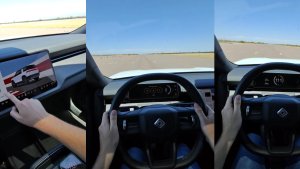
Rebooting the infotainment unit is the simplest reboot and should be your first choice when you encounter an issue with your Rivian. Infotainment reboots, also known as the “two-finger salute,” involve holding the far left and far right buttons on the steering wheel down. These are the outermost buttons located next to the scroll wheels on the steering wheel. Press them and down them down for 15 seconds to reboot the computer.
The vehicle will beep, and a graphic will be displayed on the driver’s display. Continue holding the buttons down until the screens flash to black. Once the screen goes dark, you can let go of the buttons and the infotainment unit will reboot. The whole process takes about 30-45 seconds, and you’ll soon see the displays come back on with the Rivian logo.
While this reboot can also be done while driving, we don’t recommend it, as you’ll lose access to key vehicle information during the reboot.
This reboot should be your first step when encountering an issue, especially if it’s due to the display being unresponsive or frozen. Other reboot types focus on restarting specific vehicle subsystems, so if a particular feature isn’t functioning correctly, a different reboot method may be necessary.
Sleep Reboot
Begin by unplugging everything from your vehicle, including any USB cables, devices, and the Rivian Guard USB drive. Remember to disconnect any items plugged into the Utility Panel and ensure the Gear Guard Cable Anchor (if applicable) is detached.
Next, unbuckle all seatbelts and remove any child seats or heavy items from the vehicle. If the vehicle is plugged in, disconnect it, then lock the doors. Make sure to keep all keys—including phone keys—away from the vehicle for at least 30 minutes.
This sleep reboot is simple and effective, although it could be more of a hassle, especially if you have car seats installed.
Full Reboot (1 Hour)
The full reboot resets all of the vehicle’s systems, essentially rebooting everything from the ground up. Important: Rivian support advises against performing this procedure multiple times in a short time period. You must wait at least an hour between full reboots to ensure all systems initialize correctly. Attempting back-to-back reboots may result in some vehicle systems not fully starting, which could require a service visit.
To initiate a full reboot, hold down the far-left button on the steering wheel and the emergency flasher button near the ceiling for 15 seconds. This will reset all vehicle systems. While it’s possible to drive immediately after the reboot, Rivian recommends letting the vehicle sit for at least an hour before resuming your journey to ensure everything is functioning correctly.
Subscribe
Subscribe to our newsletter to stay up to date on the latest Rivian news, upcoming features and software updates.
Rivian and Uber have just announced a massive partnership to put driverless robotaxis on the road. In a move that sent shockwaves through the EV and tech sectors, Uber has committed to investing up to $1.25 billion in Rivian to deploy a fleet of up to 50,000 fully autonomous R2 robotaxis.
The deal, announced on Thursday, marks a major step toward making driverless rides a mainstream reality. The collaboration aims to put thousands of unsupervised R2 vehicles on the road across 25 cities in the U.S., Canada, and Europe by the end of 2031.
A Billion-Dollar Bet on Autonomy
The scale of this agreement is staggering. Uber and its fleet partners will initially purchase 10,000 autonomous R2 units, with an option to buy 40,000 more starting in 2030. These vehicles will be available exclusively on the Uber platform. Commercial deployments are slated to kick off in San Francisco and Miami in 2028 before expanding globally.
Rivian Wave
RJ Scaringe, Founder and CEO of Rivian, is optimistic about the tech stack powering this fleet. “The scale of Rivian's growing data flywheel coupled with RAP1, our state of the art in-house inference platform, and our multi-modal perception platform make us incredibly excited for the rapid advancement of Rivian autonomy over the next couple of years,” Scaringe said. Uber CEO Dara Khosrowshahi added that Rivian's vertical integration gives Uber "conviction to set these ambitious but achievable targets."
If you're looking to buy one yourself, here is how the full R2 lineup is rolling out:
R2 Performance ($57,990): Arriving late Spring 2026. This dual-motor AWD flagship boasts 656 hp and a 3.6-second 0–60 mph time. It also features a "Drop Glass" rear window and a semi-active suspension.
R2 Premium ($53,990): Expected in late 2026. This trim offers 450 hp and a 4.6-second 0-60 mph time, though it skips the semi-active suspension.
R2 Standard Long Range ($48,490): The range leader with an estimated 345 miles of range, coming in early 2027.
R2 Standard ($45,000): We don’t know much about the most affordable base model other than that it is currently expected in late 2027.
If you’re still trying to decide which Rivian is right for you, check out our R2 vs. R1S buyer’s guide.
The Jump to Level 4 Autonomy
The R2 units meant for Uber will be a bit different from the early consumer models. While initial consumer R2s will use Rivian’s Gen 2 hardware, the company will pivot to Gen 3 hardware in late 2026. This next-gen suite includes LiDAR sensors and dual RAP1 chips capable of 1600 TOPS of AI compute.
This hardware is what Rivian hopes will enable true Level 4 autonomy — meaning the car can handle all driving tasks in specific conditions without any human intervention. By combining real-world data from its consumer fleet with these high-end sensors, Rivian is betting it can catch up to and eventually surpass current leaders in the space.
The partnership with Uber provides Rivian with both the capital and the platform to prove its tech at a massive scale. As we move closer to 2028, seeing an empty R2 pull up for your Uber ride might soon be the new normal.
Rivian is finally in the home stretch for its long-awaited R2 midsize SUV. After years of development and a public unveiling last week, the company is shifting its focus to the assembly line. The launch is a make-or-break moment for the automaker, which is banking on the R2 platform to carry it toward profitability.
During an interview with Out of Spec Reviews during SXSW 2026, Rivian’s Chief Software Officer Wassym Bensaid provided the most specific details yet regarding when the first units will actually hit the road.
The R2 Delivery Sequence
According to Bensaid, the rollout will follow a strict sequence to ensure the software and hardware are fully validated. The first vehicles off the line will be handed over to Rivian employees over the next few weeks.
“We’re in the final — obviously — stretch of the R2 validation, where we had the manufacturing validation builds, and then we’re getting into serious production really soon,” Bensaid said. He explained that employees “will have the cars for a few months” to help the team “accumulate a ton of miles but then also have that return of experience on the overall software.”
Once internal testing is complete, the first “lucky customers” will receive their vehicles by the end of spring, which likely points to a late May or June delivery window.
R2 Performance ($57,990): Arriving late Spring 2026, with the first deliveries also including an exclusive Launch Package. This dual-motor AWD flagship features 656 hp, a 3.6-second 0–60 mph time with a semi-active suspension, and a "Drop Glass" rear window that rolls down into the liftgate.
R2 Premium ($53,990): Expected in late 2026, this variant will skip the semi-active suspension and top out at 450 hp with a 0-60 mph time of 4.6 seconds.
R2 Standard Long Range ($48,490): The range leader of the family at a Rivian-estimated 345 miles, slated for early 2027.
R2 Standard ($45,000): The most anticipated base model is currently expected in late 2027.
A New Software Experience
Bensaid also spent significant time discussing the R2's overhauled user experience. He described a ground-up redesign of the operating system that focuses on multi-panel layering and haptic feedback. He mentioned being particularly excited about the new "Haptic Halo" scroll wheels on the steering wheel, calling them “one of the things that I’m really, really excited about”.
Rivian Wave
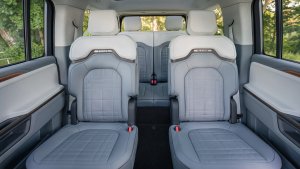
The software chief noted that he gets to drive the R2 every weekend and finds it to be the "perfect size" for his family. “My daughter loves it. She sits in the second row. It’s actually more spacious than the R1. She loves the screen. She’s in love with the screen,” he said. If you are trying to decide between the two, you can check out our R2 vs. R1S buyer’s guide for a deeper look at the differences.
With Rivian offering public rides in pre-production R2 units at SXSW over the past week, the finish line is finally in sight. If the company can navigate the transition from employee testing to public deliveries smoothly, the R2 could very well become the definitive electric SUV for the adventurous mass market.